
Do you have a 1 Gbps plan, get good test results in the morning, but find that the internet feels slower in the evening? The issue is not necessarily the speed stated in your contract. Actual performance depends on the entire path between your device and the server you are accessing: Wi‑Fi, the router, the operator’s network, congestion, peering, latency and the capacity of the destination server.
That is why a speed test may show 900 Mbps while a video service buffers, a game has high ping or downloads from a particular website are slow.
1 Gbps is the maximum speed of your connection, not a guarantee that every website will deliver 1 Gbps
A gigabit plan describes the maximum capacity of your link to a certain point in the operator’s network. The actual speed to an external service also depends on the route between the operator and that service.
If the destination server can send you only 100 Mbps, if it is busy, or if the route between networks is congested, your 1 Gbps connection cannot overcome that bottleneck.
Why is the evening different?
In the evening, far more people are simultaneously streaming, gaming, backing up files to the cloud, making video calls and downloading. The FCC treated 19:00–23:00 as a peak period in its studies precisely because congestion and degraded performance are more likely then.
On well-provisioned modern networks, the difference may be small. In overloaded areas or network segments, it can become noticeable.
The first suspect: Wi‑Fi at home
In many cases, “slow internet” is not slow over fibre; it is slow on the Wi‑Fi link between a phone or laptop and the router.
For more on the internet, see The internet after the internet: how much AI content is already online, and what happens when machines write for other machines, which offers complementary details on this subject.
Microsoft explains that the 2.4 GHz band has greater range, but is usually more crowded and offers lower throughput. The 5 GHz band is faster and less congested, while 6 GHz can provide better performance and latency over short distances, provided that the router and device are compatible.
2.4 GHz, 5 GHz and 6 GHz: the practical difference
| Band | Advantage | Disadvantage |
|---|---|---|
| 2.4 GHz | Good range; passes through walls more effectively | Slower and more congested |
| 5 GHz | Higher speed; more channels | Shorter range |
| 6 GHz | Very fast; low congestion | Short range and requires newer hardware |
Intel notes that real-world Wi‑Fi performance is lower than the theoretical speeds in specifications because of interference, congestion, router configuration, antennas, device capabilities and signal strength.
Apartment blocks are ideal conditions for Wi‑Fi congestion
An apartment block may have dozens of routers using the same frequencies. On 2.4 GHz, the number of non-overlapping channels is limited, and neighbouring networks end up competing for the same airtime.
Intel recommends checking channels and interference, and notes that channels 1, 6 and 11 on 2.4 GHz are the ones usually recommended to avoid overlap.
Why a wired test is essential
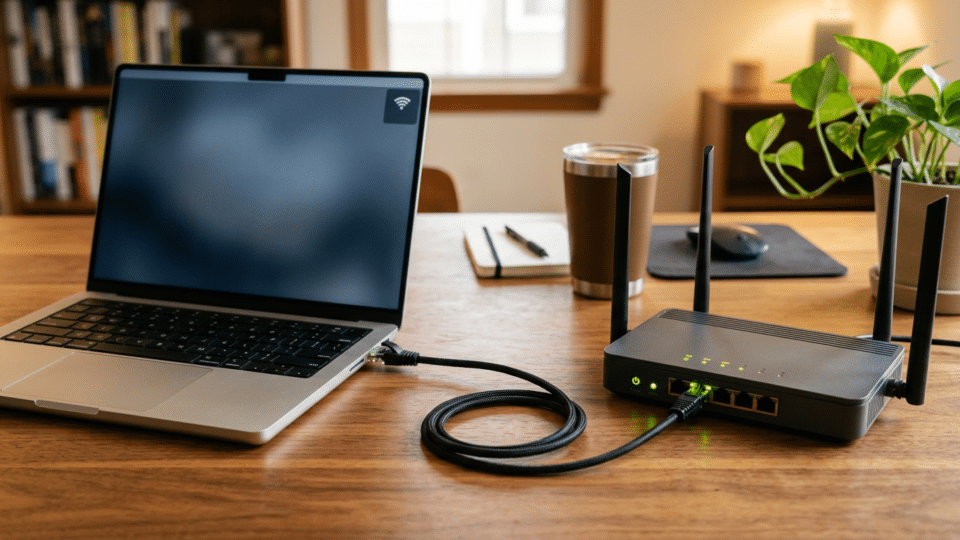
If you want to establish whether the issue lies with the operator or within your home, the first meaningful test should be over Ethernet, connected directly to the router or ONT, using a device capable of Gigabit Ethernet.
- If you get 900–950 Mbps over Ethernet but 150 Mbps over Wi‑Fi, the problem is local.
- If speeds also fall sharply over Ethernet in the evening, the issue may be in the operator’s network or on the external route.
- If only one website is slow, the issue may lie with that server or the route to it.
Why a good Speedtest result does not guarantee that the whole internet works well
Speed tests generally select nearby, well-connected servers. They are excellent for measuring the capacity of your local connection and operator, but they do not reproduce every possible route across the internet.
You may get 940 Mbps to a server in your city and only 80 Mbps to an overloaded international server.
Congestion in the operator’s network
Operators aggregate the traffic of many customers onto shared network segments. If a segment lacks sufficient capacity for the evening peak, every user’s speed may fall.
This can occur on fixed and mobile networks, as well as on some shared access networks. The classic symptom is a connection that is very good during the day but repeatedly degrades at the same time each evening.
What is peering, and why does it matter?
The internet consists of thousands of independent networks. Your operator does not own the entire route to Netflix, Google, a gaming server or a website in another country. Networks exchange traffic through interconnections known as peering, or through transit providers.
If the link between two networks is busy, traffic can slow down even when the operator’s local network is working perfectly.
Why two websites can have completely different speeds at the same time
Each service may be hosted in a different data centre, in a different country and on a different network route. Some use CDNs with nodes very close to you; others deliver content directly from a server thousands of kilometres away.
That is why YouTube may work perfectly while another video service buffers.
CDNs reduce the distance between you and the content
Large services use content delivery networks, or CDNs, which keep copies of files in data centres close to users.
The nearer the server is, and the better it is connected to the operator, the lower the latency and risk of congestion.
Latency: why 1 Gbps can feel slow
Download speed and latency are different things. The FCC points out that latency accumulates along a route and can become very noticeable in interactive applications even when bandwidth is high.
A website does not always download one large file. It may make dozens or hundreds of small requests. If each request has a long delay, the page may seem slow even though the connection has hundreds of megabits available.
Gaming needs good latency more than it needs 1 Gbps
An online game uses relatively little bandwidth compared with 4K streaming, but is highly sensitive to latency, jitter and packet loss.
That is why moving from 300 Mbps to 1 Gbps does not automatically reduce your ping.
What is bufferbloat?
Bufferbloat occurs when a router or other equipment holds too many packets in queues while a connection is saturated. Speeds can remain high, but latency soars.
The typical symptom is that someone is uploading or downloading heavily while games, video calls and web browsing all become sluggish.
Upload traffic can disrupt the experience even when download capacity seems free
Cloud backups, video cameras, phone synchronisation and file transfers can consume upload capacity. If it reaches its limit, acknowledgement packets and interactive traffic can be delayed.
The router may be the real limitation
Not all routers can process 1 Gbps with every feature enabled. Firewalls, QoS, VPNs, parental controls, traffic filtering and other features can reduce throughput.
An older router may have Gigabit ports but an insufficient processor for NAT, PPPoE or VPN at speeds close to 1 Gbps.
An Ethernet cable can limit the connection to 100 Mbps
If an Ethernet cable is damaged or has only two working pairs, the link may negotiate at 100 Mbps rather than 1 Gbps.
Check in your operating system whether the Ethernet link has negotiated at 1.0 Gbps or 2.5 Gbps, rather than 100 Mbps.
DNS can affect the perception of speed, but it does not increase bandwidth
DNS converts a website name into an IP address. Slow DNS can delay the start of a page load, but once the connection is established it cannot turn a 300 Mbps plan into a 1 Gbps plan.
A VPN can reduce speed
A VPN introduces an intermediary server and additional encryption. Its speed depends on the distance to the server, its load, the VPN protocol, and the power of the device or router.
How to test where the problem comes from
- Step 1: Test over Ethernet, not Wi‑Fi.
- Step 2: Temporarily turn off the VPN and background downloads.
- Step 3: Test several local and international servers.
- Step 4: Repeat the test in the morning and between 19:00 and 23:00.
- Step 5: Check ping and packet loss, not only Mbps.
- Step 6: Compare a slow website with a large service such as YouTube or a well-known CDN.
- Step 7: Test 2.4 GHz, 5 GHz and 6 GHz separately if they are available.
How to interpret the results
| Symptom | Likely cause |
|---|---|
| Fast over Ethernet, slow over Wi‑Fi | Signal, interference, channel or router |
| Everything is slow only in the evening | Network or interconnection congestion |
| Only one website is slow | Server, CDN or routing |
| Good Speedtest result, poor gaming performance | Latency, jitter or packet loss |
| The internet stalls when someone uploads | Bufferbloat or saturated upload |
| Speed stops at around 95 Mbps | Ethernet link negotiated at 100 Mbps |
What you can improve at home
- Move the router to a central, unobstructed position.
- Use 5 GHz or 6 GHz for nearby devices.
- Use Ethernet for a PC, console and TV where possible.
- Avoid heavily congested Wi‑Fi channels.
- Update the router firmware.
- Check whether the router is powerful enough for a gigabit connection.
- Use properly configured QoS/SQM if you have bufferbloat issues.
- Avoid large backups at times when you need low latency.
Does mesh Wi‑Fi always solve the problem?
No. Mesh systems primarily help with coverage. If the nodes communicate with one another wirelessly, some capacity is used for backhaul.
The best performance scenario is a mesh system with Ethernet backhaul, or a network with wired access points.
When to contact your operator
It makes sense to file a report if wired tests show repeatable degradation at certain times, if packet loss occurs, or if speeds are consistently far below the normal level of your plan.
It is very helpful to keep screenshots of tests taken at different times and to record the server, time, ping, download and upload results.
Conclusion: 1 Gbps does not mean every link on the internet is 1 Gbps
Your connection is only one part of the route. In the evening, performance may be affected by Wi‑Fi, operator congestion, interconnections, external servers, latency or saturated upload capacity.
The most important test is to compare Ethernet with Wi‑Fi, and multiple destinations with one another. If wired speeds are good and only wireless is slow, the operator is not the first suspect. If Ethernet also degrades at the same times, the provider’s network or the external route is worth investigating.
Frequently asked questions about slow internet in the evening
Why do I have 1 Gbps but download at only 100 Mbps?
The limit may be the server, Wi‑Fi, router, route or an Ethernet link negotiated at 100 Mbps.
Why does my internet work worse only in the evening?
Evening hours have the highest traffic. If a network segment or an interconnection is overloaded, performance may decline.
Is 5 GHz always better than 2.4 GHz?
It is generally faster and less congested, but it has shorter range and passes through walls less effectively.
Does changing DNS increase download speed?
Not directly. It may reduce name-resolution time, but it does not increase the connection’s capacity.
How do I find out whether the problem is Wi‑Fi or my provider?
Test over Ethernet. If wired speed is good while Wi‑Fi is slow, the problem is almost certainly in the local network.









Discuția cititorilor
Ai o opinie sau o întrebare despre acest articol? Spune-ne ce crezi.
Fii primul care deschide discuția.
Te rugăm să păstrezi un limbaj civilizat și să discuți la subiect. Comentariile spam sunt filtrate automat.